PickSlip Pro by Kalvega Labs Wix User Guide for Packing Slips and Pick Lists
Packing orders is easier when the right paper is ready before you start. PickSlip Pro by Kalvega Labs helps you print packing slips and pick lists for Wix Stores orders, so you can match items, pack parcels, and keep each order organised.
The app is made for Wix Stores orders. It reads order details and uses them to create printable documents. It only reads orders and never changes them.
This guide shows you how to set it up, where to find each part of the app, and how to print from an order or from the Pack Station.
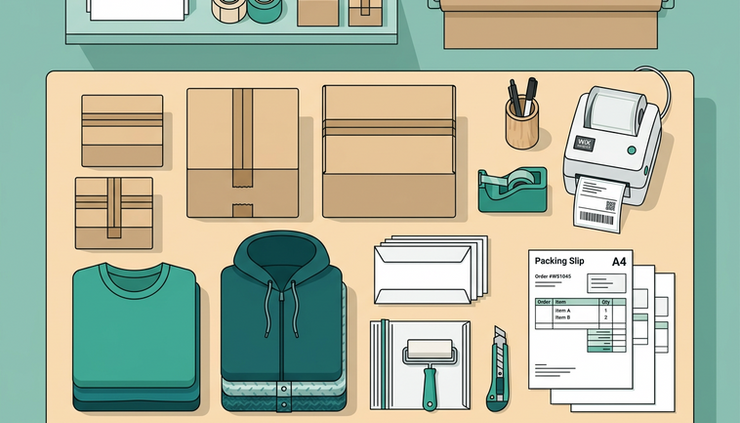
Quick start
Use these steps when you want to get running quickly.
1. Check that your site has Wix Stores
PickSlip Pro works with Wix Stores orders. Before you install the app, your site needs Wix Stores.
2. Install PickSlip Pro from the Wix App Market
Go to the Wix App Market and install PickSlip Pro by Kalvega Labs.
After installation, open the PickSlip Pro page in your Wix dashboard.
3. Open the PickSlip Pro page
The PickSlip Pro page has three tabs:
`Pack Station`
`Settings`
`Help & FAQ`
The header shows your current plan as either `Free plan` or `Pro plan`.
If you are on the Free plan, the header also shows an `Upgrade to Pro` button.
4. Add your business details in Settings
Open the `Settings` tab.
Enter the details you want to show on your slips:
Business name
Business details
Logo
Paper size
For the logo, you can use the Media Manager or an `https` link.
Then click `Save settings`.
5. Print your first packing slip from an order
Open any order in Wix.
Click `More actions`, then click `Print packing slip`.
Check the preview. If everything looks right, click `Print`.
That is the basic Wix packing slip flow with PickSlip Pro.
Tour of PickSlip Pro
PickSlip Pro is built around three main areas. Each one has a clear job.
Pack Station
The `Pack Station` tab gives you an order list for printing slips and pick lists.
You can filter the order list by:
Fulfilment
Payment
Date placed
Sales channel
Printed, on Pro
You can also use the `Refresh` button to update the list.
If you use the Free plan, each row has a `Print slip` option. You print one order at a time.
If you use Pro, you can tick up to 100 orders. You can then choose `Print packing slips` or `Print pick list`. Pro also adds a Printed column.
These filters can help when you are working through Wix Stores fulfilment and need to focus on the right set of orders.

Settings
The `Settings` tab controls what appears on your printed documents and which paper size you use.
All users can set:
Business name
Business details
Logo
Paper size
Free supports:
A4
US Letter
Pro adds:
US Legal
A5
A6
4 x 6 in label
Pro also adds more settings:
Accent colour
Footer text
Toggle for SKU
Toggle for product images
Toggle for buyer note
Toggle for custom fields
Toggle for tracking number
Toggle for barcode, using order or tracking number
Toggle to hide the `Powered by PickSlip Pro` line
The packing slip barcode option is only part of the Pro settings.
Help & FAQ
The `Help & FAQ` tab includes 9 questions.
If you need help beyond those answers, you can contact Kalvega Labs at `support@kalvegalabs.com`. Replies are within 24 hours.
Set up your slips in Settings
Before you print many slips, spend a few minutes on the `Settings` tab. This helps keep each document clear and consistent.
Enter your business name
Add the business name you want customers to see on the packing slip.
This is useful when your Wix site name and trading name are not the same, or when you want a simple printed name on the document.
Add your business details
Use the business details field for the information you want to show under or near your business name.
Keep it tidy. Packing slips are usually read quickly while packing or unpacking an order.
Add your logo
You can add a logo in either of these ways:
Choose it from the Media Manager
Use an `https` link
The logo appears on the slip.
Choose the paper size
Pick the paper size that matches how you print.
Free supports A4 and US Letter. Pro adds US Legal, A5, A6, and 4 x 6 in label.
For many stores in India, A4 is a common choice. If your printer uses another supported size, choose the matching option before you print.
Save your changes
After you finish editing the settings, click `Save settings`.
If you miss this step, your latest changes will not be saved.

Print a packing slip from an order
This is the simplest way to print a single slip.
Use it when you are already viewing an order and want to print the document for that order only.
Step 1. Open an order
In your Wix dashboard, open any order.
Step 2. Open More actions
Click `More actions`.
Step 3. Choose Print packing slip
Click `Print packing slip`.
Step 4. Check the preview
Review the preview before printing.
Look for the details you expect to see, such as the order number, shipping details, and items.
Step 5. Print the slip
Click `Print`.
This method is useful when you only need one slip, or when you prefer to work order by order.
Print from the Pack Station
The `Pack Station` is useful when you want to work from a list of orders.
Print one slip on Free
On the Free plan, the Pack Station shows a `Print slip` option per row.
To print:
Open `Pack Station`.
Use filters if needed.
Find the order.
Click `Print slip` on that row.
Check the preview.
Print the slip.
Free prints one slip at a time.
Print up to 100 orders on Pro
On Pro, you can tick up to 100 orders in the Pack Station.
To print packing slips:
Open `Pack Station`.
Use filters if needed.
Tick the orders you want to print.
Click `Print packing slips`.
Check the preview.
Print.
This is the Pro path for bulk print packing slips.
Print a pick list on Pro
A pick list is different from a packing slip.
A packing slip is for a specific order. A pick list helps you collect products across multiple orders.
In PickSlip Pro, the Pro pick list totals the same product across orders. This means that if the same product appears in more than one selected order, the pick list groups that need into a total.
To print a pick list:
Open `Pack Station`.
Tick up to 100 orders.
Click `Print pick list`.
Check the preview.
Print.
A Wix pick list can help when you gather items before packing each order.
What appears on a packing slip
A packing slip includes:
Logo
Business details
Order number
Ship-to details
Items with SKU and quantity
PickSlip Pro also handles some order contents in a specific way.
Digital items are skipped. Services are skipped. Gift cards are skipped.
Refunds are subtracted.
That means the slip focuses on the physical items that need to be packed and shipped.

Free vs Pro
Use this table to compare what is included.
Feature | Free | Pro |
Print packing slips | One slip at a time | Print packing slips for up to 100 selected orders |
Pack Station row action | `Print slip` per row | Tick orders, then use `Print packing slips` |
Pick list | Not included | `Print pick list` |
Printed column | Not included | Included |
Paper sizes | A4 and US Letter | A4, US Letter, US Legal, A5, A6, and 4 x 6 in label |
Logo | Included | Included |
Business details | Included | Included |
SKU on slip | Included | Toggle available |
Product images | Not included | Toggle available |
Buyer note | Not included | Toggle available |
Custom fields | Not included | Toggle available |
Tracking number | Not included | Toggle available |
Barcode | Not included | Toggle available, using order or tracking number |
Accent colour | Not included | Included |
Footer text | Not included | Included |
Hide `Powered by PickSlip Pro` line | Not included | Toggle available |
`Powered by PickSlip Pro` line | Included | Can be hidden |
The Free plan covers simple one-at-a-time printing with your logo, business details, A4 or US Letter paper, SKU, and the `Powered by PickSlip Pro` line.
Pro adds multi-order printing, pick lists, more paper sizes, the Printed column, and the extra slip settings listed above.
FAQ
Does PickSlip Pro change my orders?
No. PickSlip Pro only reads orders. It never changes them.
Where do I print a packing slip from an order?
Open any order, click `More actions`, then click `Print packing slip`. Check the preview, then click `Print`.
Can I print more than one packing slip at a time?
Yes, on Pro. In `Pack Station`, tick up to 100 orders, then click `Print packing slips`.
On Free, you print one order at a time.
Can I print a pick list?
Yes, on Pro. In `Pack Station`, tick the orders you want, then click `Print pick list`.
The pick list totals the same product across orders.
Which paper sizes can I use?
Free supports A4 and US Letter.
Pro supports A4, US Letter, US Legal, A5, A6, and 4 x 6 in label.
What items are skipped on the packing slip?
Digital items, services, and gift cards are skipped.
Refunds are subtracted.
Where can I change my logo and business details?
Open the `Settings` tab. Add your business name, business details, logo, and paper size. Then click `Save settings`.
Where can I get help?
Open the `Help & FAQ` tab. It includes 9 questions.
You can also email `support@kalvegalabs.com`.
Replies are within 24 hours.
For day-to-day use, the best flow is simple. Set your business details first. Print one test slip from an order. Then use the Pack Station when you are ready to work through more orders. If you use Pro, add pick lists when you want to gather products across selected orders before packing.


Comments